
























Text to Video AI
Turn your text prompts into stunning AI-generated videos. Simply describe your idea and let AI bring it to life with motion, visuals, and creative effects.
My Creations 0
Generating video...
Generated results will appear here
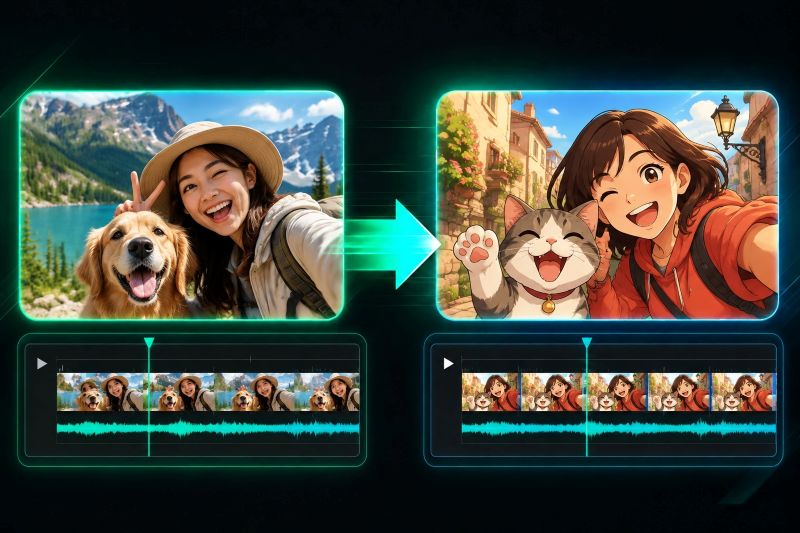
Video to video AI tool
Apply a ready-made style to your video. Move from a lively Ghibli-style animation to a realistic Pixar-style 3D look. Pick the style that matches the idea you have in mind.
Create from scratch with text-to-video AI
Turn a short description into a full moving scene. Describe the subject, the action, the place, the camera move, and the mood. Generate a product concept, a film-style clip, a short social video, or a story scene without filming. Creators and marketers can test an idea quickly.
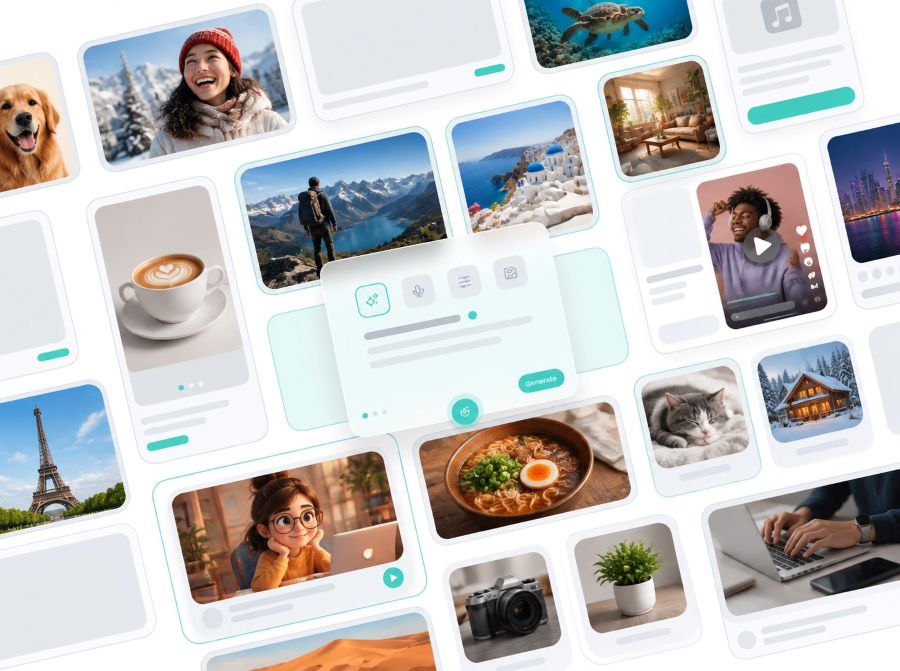
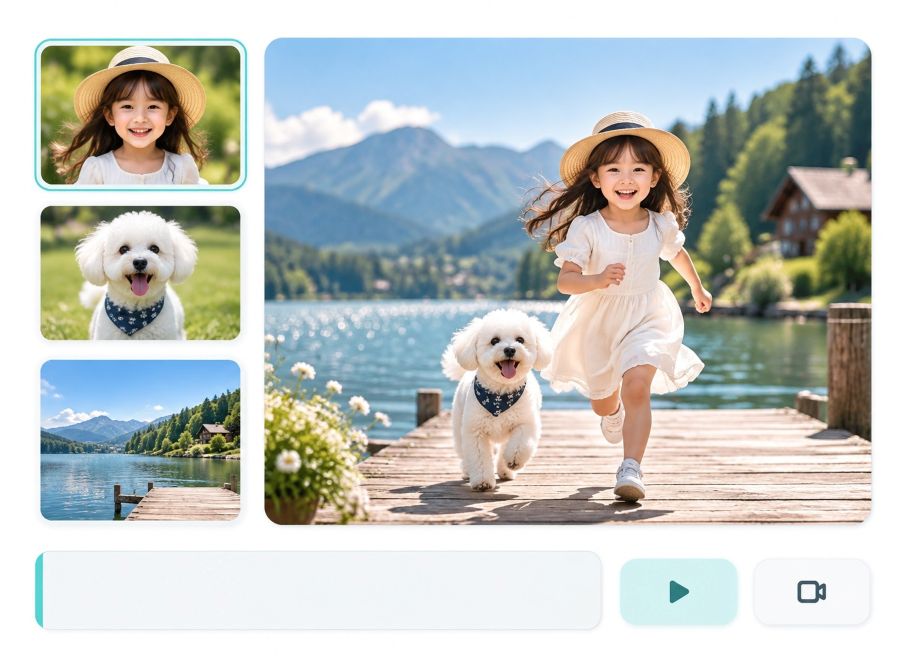
Keep the look you want with a reference-to-video AI
A description alone can miss a specific look, character, layout, or action. A reference image guides the result, so the mood, camera style, product presentation, or creative direction stays closer to what you want. If the current reference is not a good match, create or restyle one before you generate the video.
Turn more ideas into video with an AI video generator
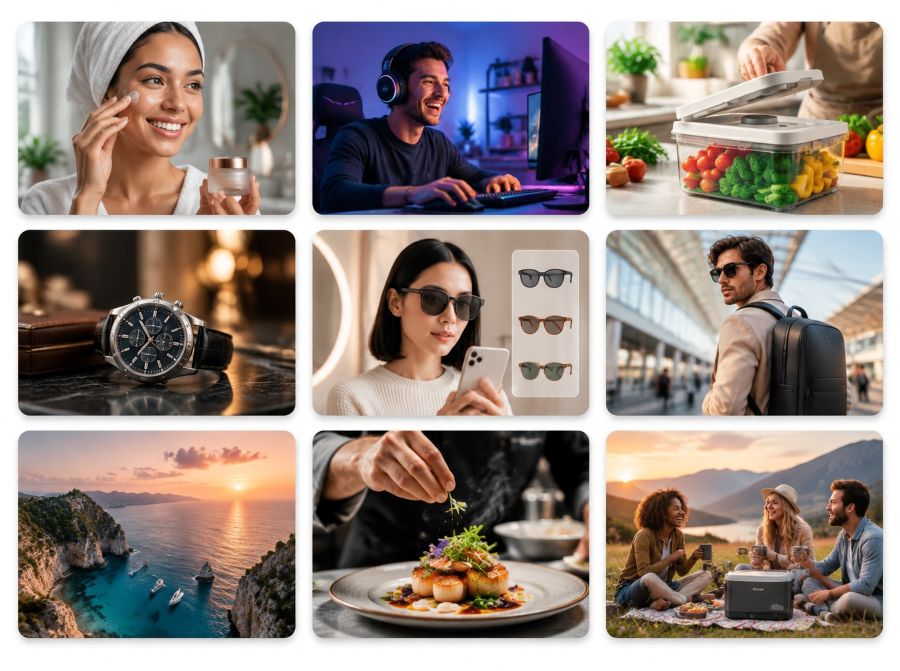
Good ideas often wait because making a video is costly, slow, or hard to operate. Start from text, a photo, or a reference image, and turn a concept into a moving video without a full production team. Use it to test a marketing idea, make a product visual, set artwork in motion, build a short story scene, or create new content for social posts, ads, presentations, and online shops.
How to use the AI video generator
-
Choose how to start
Start from a photo, from text, or from reference images. Upload a photo to set the subject, write a description for a new scene, or upload reference images to guide the look, motion, and creative direction.
-
Describe the video and choose the settings
Describe the motion, camera, speed, mood, and look. Then pick a model, and set the ratio, length, and video size. A stronger model, a longer video, or a larger video size can use more credits. The cost is shown before you generate.
-
Generate, check, and download
Click Generate, then check the motion and whether the subject stays recognizable. Change the description, photos, model, or settings if needed. Download the video for social posts, ads, product pages, presentations, or other work.
How to write the prompt
A clear prompt covers four things: the subject, the action, the camera, and the look. One idea is easier to follow than a long list of effects.
Subject and action
Say who or what is in the shot, then what they do. A dancer turning toward the camera is clearer than a vague request to make the clip look better.
Camera and pace
Pick one camera move and say how fast it is: a slow move closer, a side move, or a steady wide shot. Several moves in one short clip usually fight each other.
Look and mood
Add the place, the light, and the style in a few words, such as warm evening light, a clean studio, or a bright product shot. Leave out extra effects that pull attention away from the main action.
When you also upload images
Use the prompt for motion and style. Point to each upload as Image 1 or Image 2 so the model knows which photo sets the subject and which one sets the look.
Use cases for the AI video generator
Use it for social posts, product marketing, stories, lessons, and design. Turn an idea or an existing image into a short video that is easier to notice and remember.
Social posts
Turn an idea, a photo, or a reference image into a short video for TikTok, Instagram, or YouTube Shorts. Try a new opening, camera angle, motion, or style without filming each version.
Product marketing
Add motion to a product photo: a slow turn, a close camera move, a light change, or a real-life setting. Use the clip on a product page, a social ad, a launch post, a shop banner, or a landing page.
Ad tests before a shoot
Turn an early idea into a moving clip before you book actors, a location, or a full shoot. Use it for an internal review, a client demo, a campaign test, or a short ad.
Stories and imagined scenes
Start from a description, artwork, or a reference image. Make a landscape, a character moment, a fantasy place, or a film-style shot for a story idea, a mood board, or a pitch.
Lessons and explainers
Make a short visual for a lesson, a presentation, a process, or an idea that is easier to grasp in motion. Check the facts before you publish.
Art, characters, and design
Add light motion to a character, a poster, digital art, a game concept, or an album cover. Keep the original design recognizable. Soft motion works best when the artwork should stay the focus.
AI video generator FAQ
How are credits calculated?
Credits depend on the model, the video size, and the length. A stronger model, a larger video size, or a longer video uses more credits. The exact cost is shown before you click Generate.
What video lengths and video sizes are supported?
The choices follow the selected model. Lengths run from a few seconds up to 30 seconds, and some models also offer Auto. Video size runs from 360p up to 4K on the models that include it. Open the settings to see the options for the model you picked.
How do I make a marketing video?
Start from a product photo or a short description. Ask for one clear action, such as a slow turn or a close camera move. Use 9:16 for a vertical ad or 16:9 for a wide ad, then preview the clip before you publish it.
How do I get a better result?
Use a clear photo, name one action and one camera move, and match the length to that move. If the result misses the look, change the description or the reference image and generate again.
Can I use the video in a commercial project?
Yes. You can use the finished video in ads, product pages, and client work. You still need the rights to any photo, face, or product you upload, and you should check the result before you publish.
Which mode should I choose?
Use text when the scene can be new. Upload a photo when a person, product, or place should stay recognizable. Upload reference images when you want to guide the look, the layout, or the motion.
 Images to Text
 Image to Doc
 Image to Excel
 Compress Image
 Image Converter
 Crop Image
 Resize image
 Rotate image
 Background Remover