
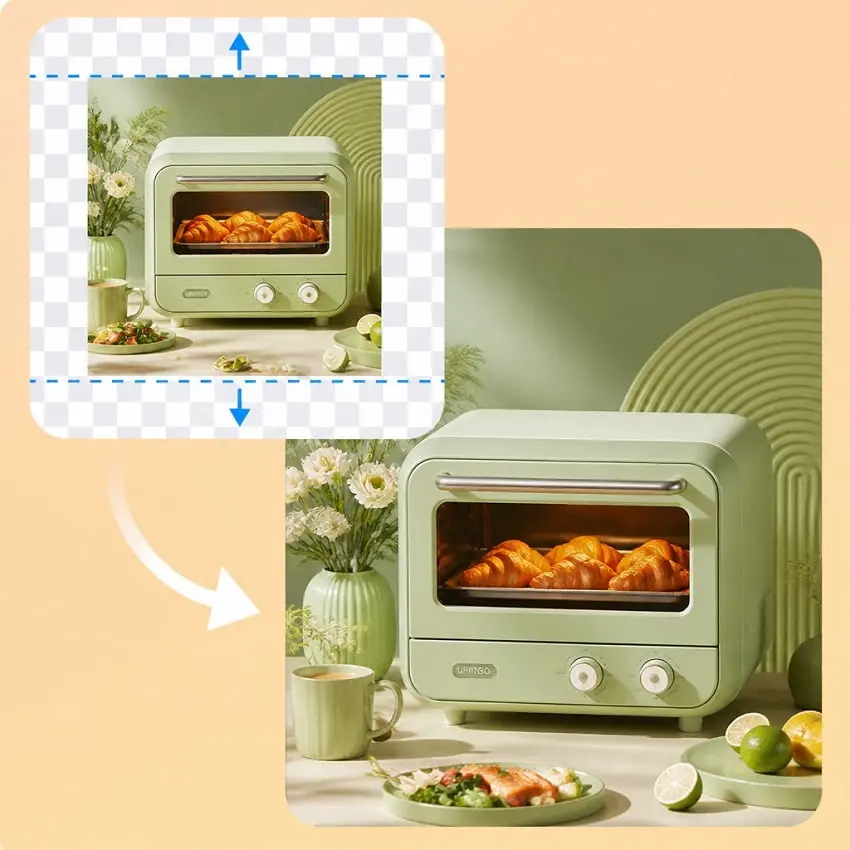
Upload the original photo
Start with a clear JPG, PNG, or WebP. Keep the subject fully visible. The tool uses this image as the source and continues the scene around it.
Upload one photo, choose a target aspect ratio, and let AI generate the added scene. Results can vary by photo and model.
Upload one photo and choose a wider or taller canvas. AI generates a continuation of the scene around your image. Results can vary by photo and selected model.
AI outpainting, also called AI image expansion, generates a continuation of the scene around your photo to create a wider or taller frame. Results can vary by source photo and selected model.
Use it to add space around a tightly cropped photo, adapt a portrait to a wide banner, or create room for a new layout. Choose a target aspect ratio and generate. The AI creates content for the added canvas based on your photo.
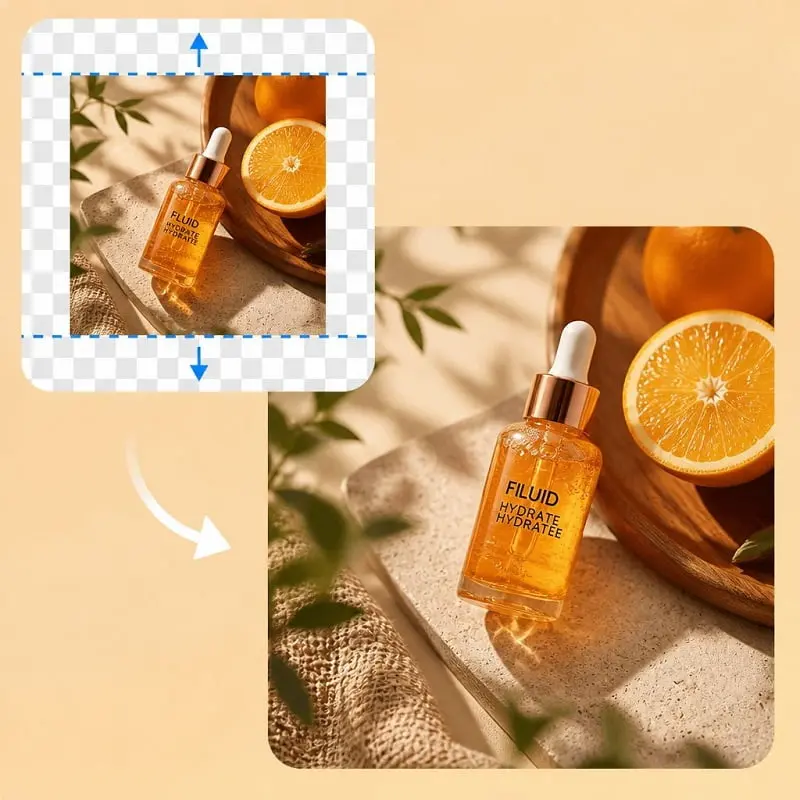
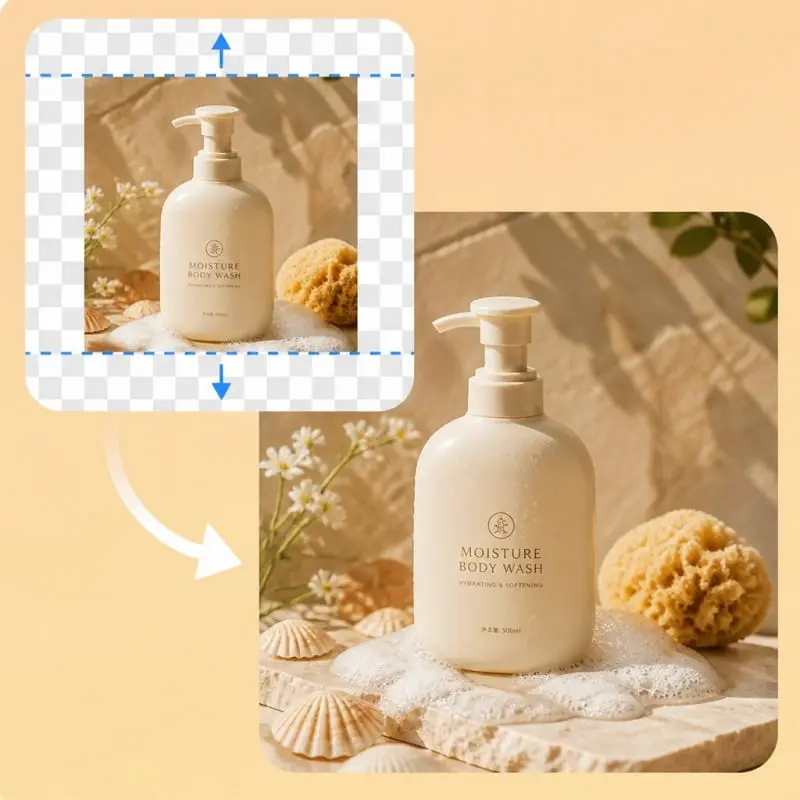
Pick a ready-made ratio such as 1:1, 4:3, 9:16, or 16:9. The extra space is filled to match Instagram, YouTube, Facebook, and other layouts.
You do not have to calculate pixel sizes. Choose the frame you need, generate, and download a photo that is ready to post.
AI image extender generates the added parts of a photo in seconds. It uses the original image as a reference to continue the scene into the new canvas. Results vary depending on the source photo and selected model.
Use it for social posts, campaigns, and layouts that need a different frame. The AI uses the scene, lighting, and textures in your photo to guide the extension.
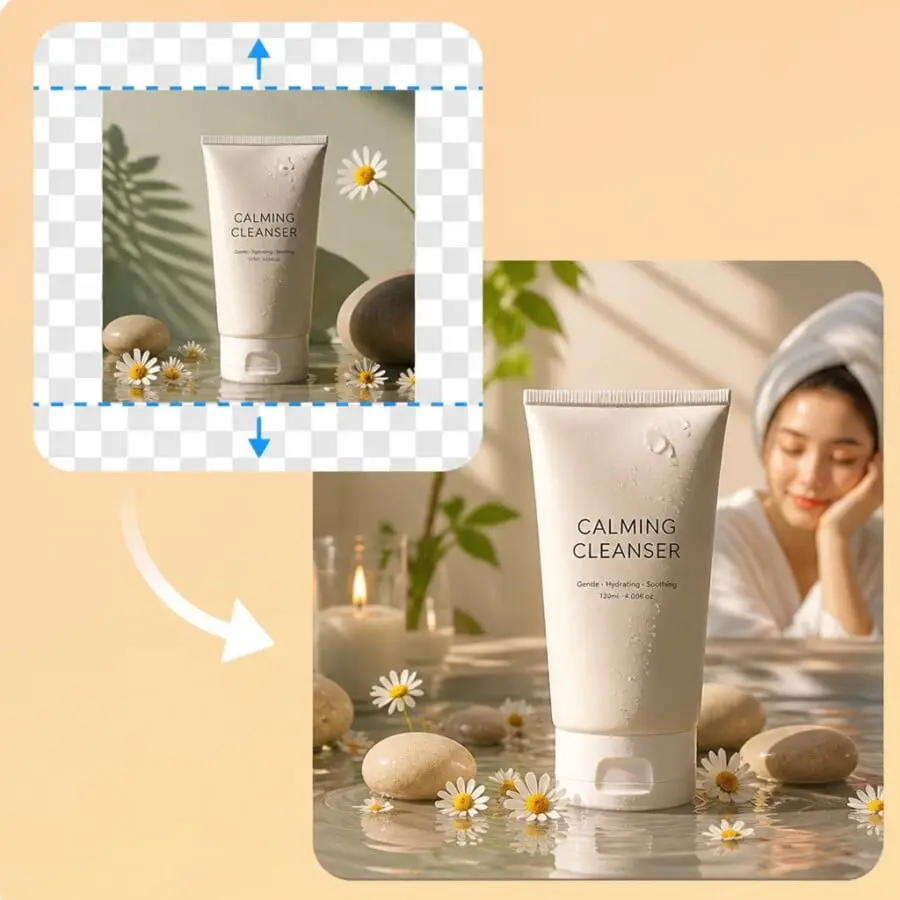
Start with a clear JPG, PNG, or WebP. Keep the subject fully visible. The tool uses this image as the source and continues the scene around it.
Set the target aspect ratio and resolution. The extra space is filled automatically to match that frame.
Click Generate to outpaint the extra canvas. Download the wider or taller photo, then switch the aspect ratio and run again from the same upload if you need another frame.
Use AI outpainting when the photo is already right, but the frame is too tight for the place you want to publish it.
Zoomed-in portraits, products, and interiors often lose the edges of the room or background. Outpainting puts that surrounding space back without shooting again.
YouTube covers, website heroes, and presentation slides need a landscape frame. A square or vertical photo can grow left and right until it fits 16:9.
Stories, Reels, and Shorts use a tall frame. A landscape photo can gain sky, floor, or wall above and below so the subject still sits in the middle.
Thumbnails, posters, and app headers often need empty area for a headline. Extending the canvas creates that margin while the original subject stays put.
The model uses your photo as a reference to generate the expanded frame. It aims to keep the main subject and scene consistent, but details can change slightly. Results depend on the source photo and model.
The upscaler keeps the same crop and adds pixels. The extender changes the crop by generating new scene around the photo. Use the extender when a 1:1, 9:16, or 16:9 frame is the goal.
That happens with a vertical original. A square canvas is already as tall as it needs to be, so the missing space is width. Extra sky or floor would make the photo taller, not 1:1.
Use Standard for a quick, free-tier expand. Switch to Advanced when the new frame is much wider or taller, or when the seam between the original photo and the filled area looks too obvious.
No. Upload a JPG, PNG, or WebP, pick a preset ratio, and generate in the browser. You do not have to place the photo on a larger canvas or paint a mask first.
Standard at 1K may use the shared daily free quota when free generations are available. Advanced and paid resolutions use credits. Sign in to continue with credits after the free quota is used.
Yes. One credit balance covers this extender and the other image tools on the site, including upscaler, eraser, editor, generator, try-on, and product photography.
No. Your recent results are stored locally in this browser for up to 15 days. Download the PNG to keep a copy. The tool does not provide an online image gallery.
 English English
 Deutsch
 Español
 繁體中文
 简体中文
 日本語
 Dansk
 한국어
 Ελληνικά
 Français
 Русский
 Italiano
 Português
 Nederlands
 العربية
 Türkçe
 Bahasa Indonesia
 Polski
 Українська
 Svenska
 Suomi
 Čeština
 Norsk bokmål
 Română
 Magyar
 Slovenčina
 Images to Text
 Image to Doc
 Image to Excel
 Compress Image
 Image Converter
 Crop Image
 Resize image
 Rotate image
 Background Remover