
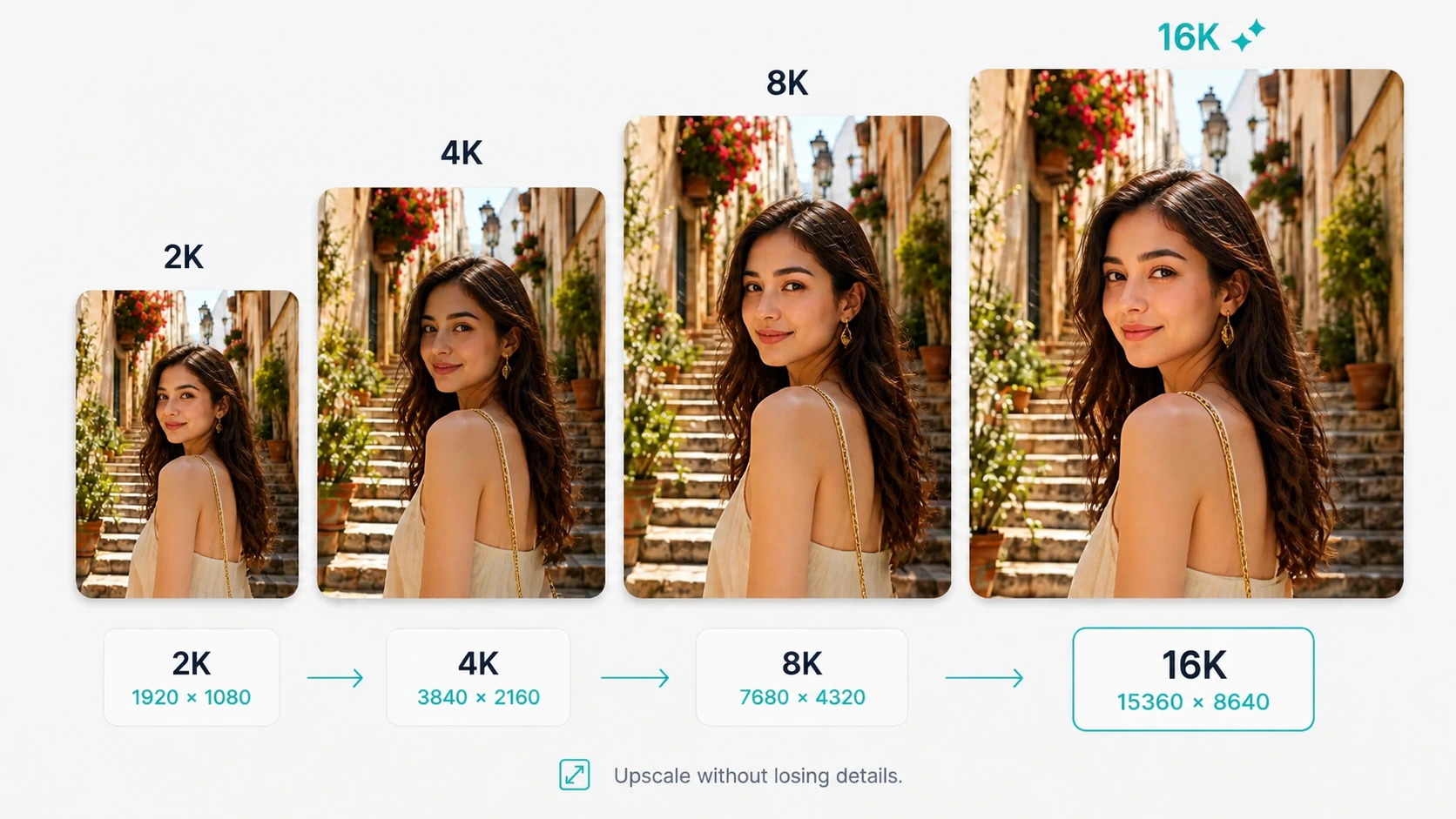
2K to 16K Output
2K works well for web and social content. Choose 4K or higher for print, posters, and large displays.
AI Image Enlarger
Improve small or blurry photos with AI. Choose an output size from 2K to 16K.
or drop files here
JPG, PNG, WebP
Before & after
The left image is the original. The right image shows the same photo after AI upscaling, with improved clarity and detail.
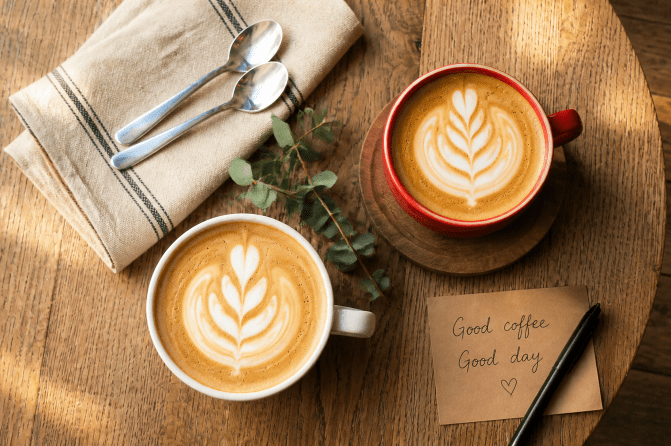
Small images can look soft or pixelated when you need them for websites, product pages, presentations, or print. AI Image Upscaler increases image size and adds natural-looking detail instead of simply stretching the pixels.
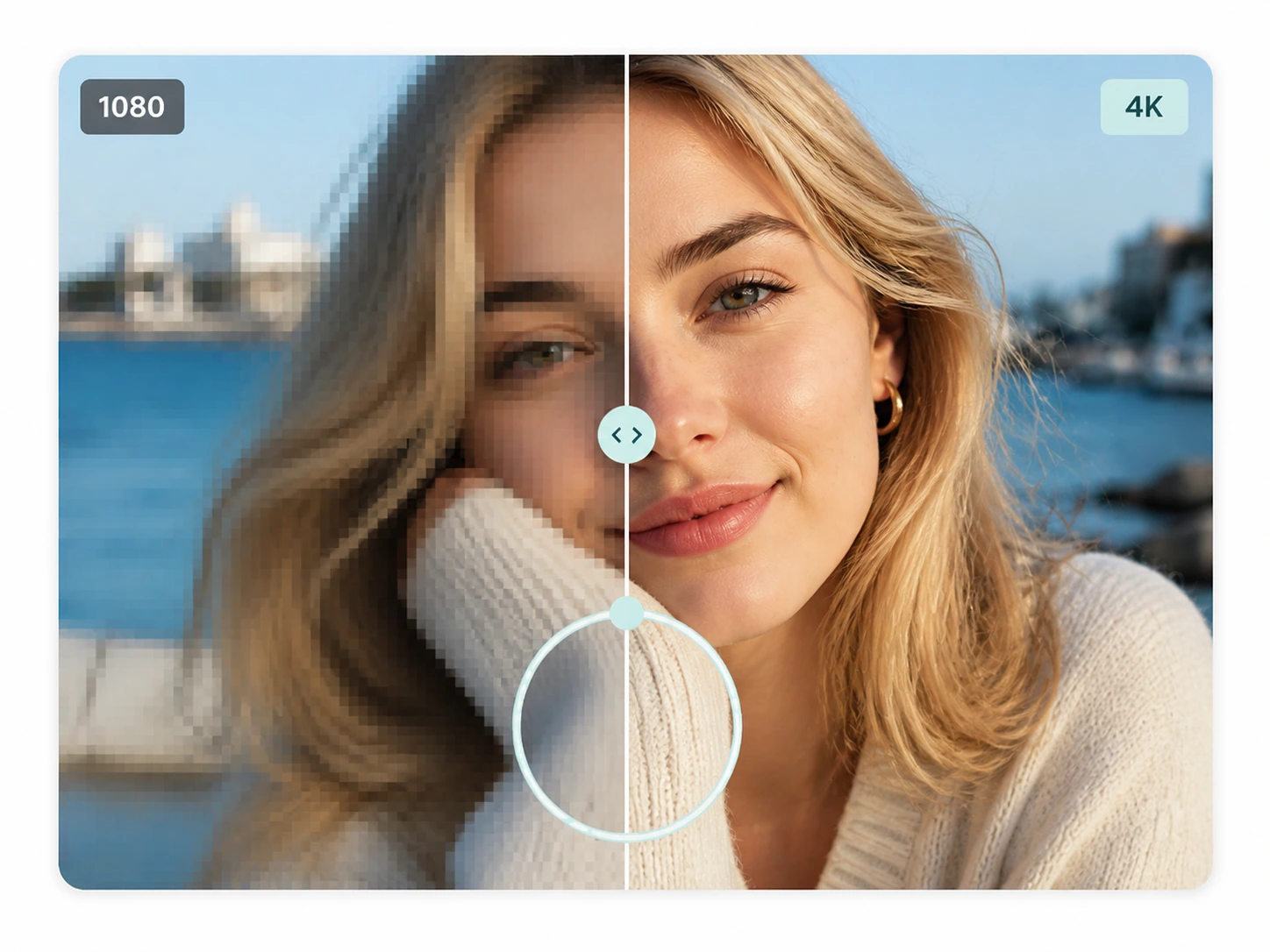
AI Image Upscaler enlarges your photo while helping improve edges, textures, and fine details. The result keeps the original look while appearing clearer at a larger size.
Colors remain natural and common artifacts may be reduced. Use the result for print, product listings, or large displays.
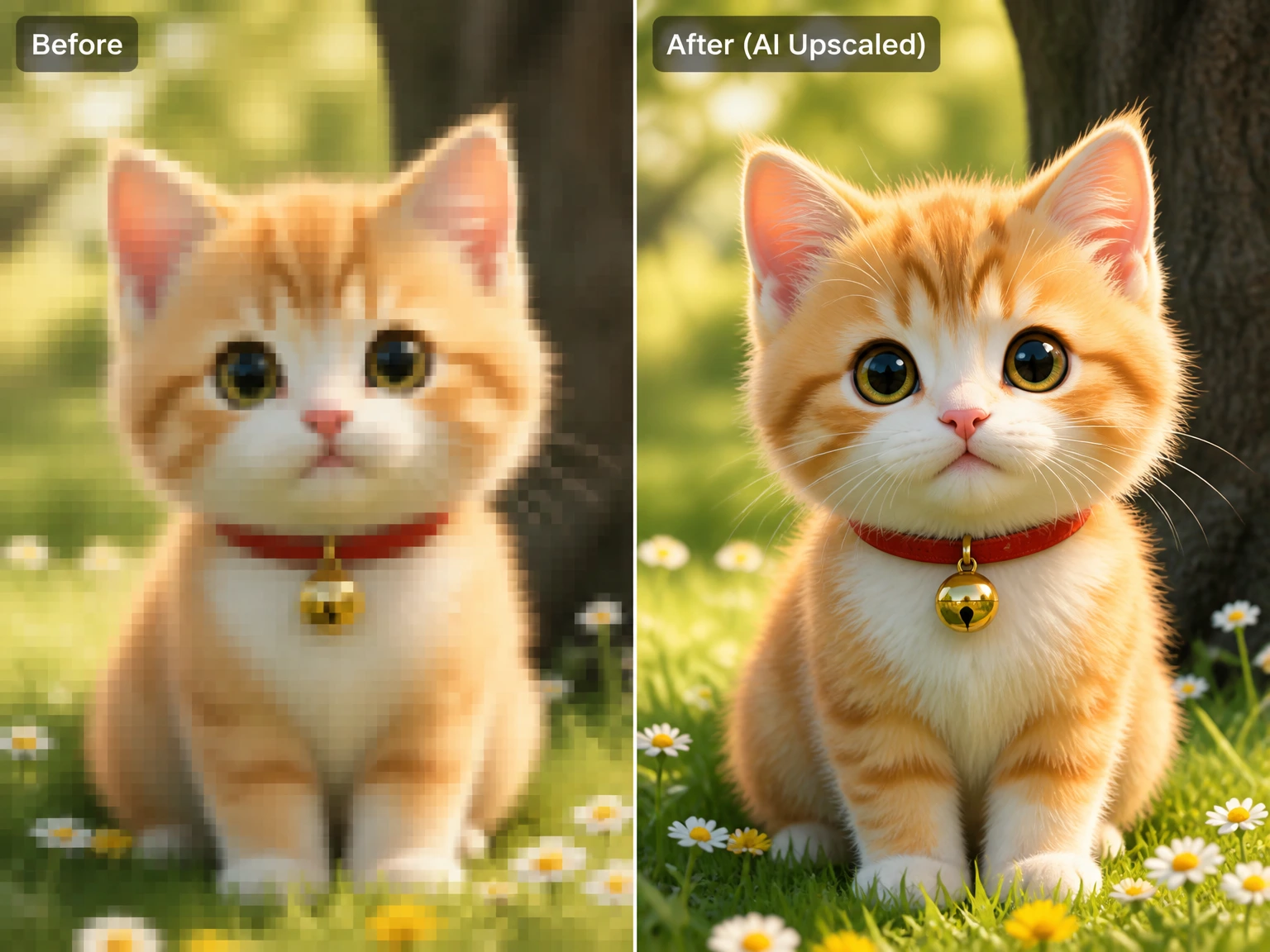
Make small, blurry, or pixelated images clearer for websites, thumbnails, presentations, posters, product listings, and social posts. AI upscaling creates a more natural result than standard resizing.
Your upscaled PNG files are ready to download
2K works well for web and social content. Choose 4K or higher for print, posters, and large displays.
Your photos are used only for upscaling and are deleted automatically afterward. They are not stored or shared.
Upscale images from a desktop, tablet, or phone. No desktop software is required.
Drag and drop JPG, PNG, or WebP files. Free users can upscale up to 3 images at once. Logged-in users with credits can upscale up to 20 images in one batch.
Choose 2K for a moderate increase. Choose 4K or higher when the original is small and you need more resolution.
Save one file or download everything as a ZIP. File names end with _upscaled.png.
Basic resizing stretches existing pixels and can make an image look blurry. AI upscaling generates additional detail along edges and textures, helping faces, text, and product lines look clearer at a larger size.
Upscale archived scans, old client files, event photos, or other images that cannot be captured again.
For marketplace images, upscale the source photo first, then remove the background. This order can help preserve cleaner edges.
No. Image Upscaler only enlarges the photo. Use the Background Remover page if you need a transparent cutout.
These are output size options. 2K is 1920 × 1080, 4K is 3840 × 2160, 8K is 7680 × 4320, and 16K is 15360 × 8640. Higher sizes are better when the original is very small or you need print-size output.
JPG, JPEG, PNG, and WebP are supported. Enlarged files download as PNG.
Free users can enlarge up to 3 images at once. Logged-in users with credits or an active subscription can enlarge up to 20 images in one batch.
Standard is the faster option for web, social, and listing photos. Quality uses more processing for extra detail, and is the better choice for print, posters, and very small originals that need 8K or 16K output.
Yes. Photos are used only to enlarge the image, then automatically deleted. They are not stored or shared with other users.
 English English
  Deutsch
 Español
 繁體中文
繁體中文
 简体中文
简体中文
 日本語
日本語
 Dansk
Dansk
 한국어
한국어
 Ελληνικά
 Français
 Русский
 Italiano
 Português
 Nederlands
 العربية
 Türkçe
 Bahasa Indonesia
 Polski
 Українська
 Svenska
 Suomi
Suomi
 Čeština
 Norsk bokmål
 Română
 Magyar
 Slovenčina