

























AI Product Photography

Upload a product photo, choose a scene, and generate a new background without changing the product.

Quality
Free uses left today 5

Delete this photo from this browser?

Credits are required to generate.

Buy credits

What is AI Product Photography?

Upload one product photo, describe the new scene, and generate ecommerce-ready images. The product stays the same. Only the background, lighting, and surface change.

Make product photos look cohesive, clean, and professional

A strong product scene should not look like an object pasted onto a random backdrop. AI product photography helps you build a cleaner composition, so the product, lighting, background, and mood feel like they belong together.

The generated shots look polished and commercial. The product stays clear, the brand presentation holds together, and each image is easier to use in listings, banners, and social posts.

Skincare bottle in a clean studio scene after AI product photography
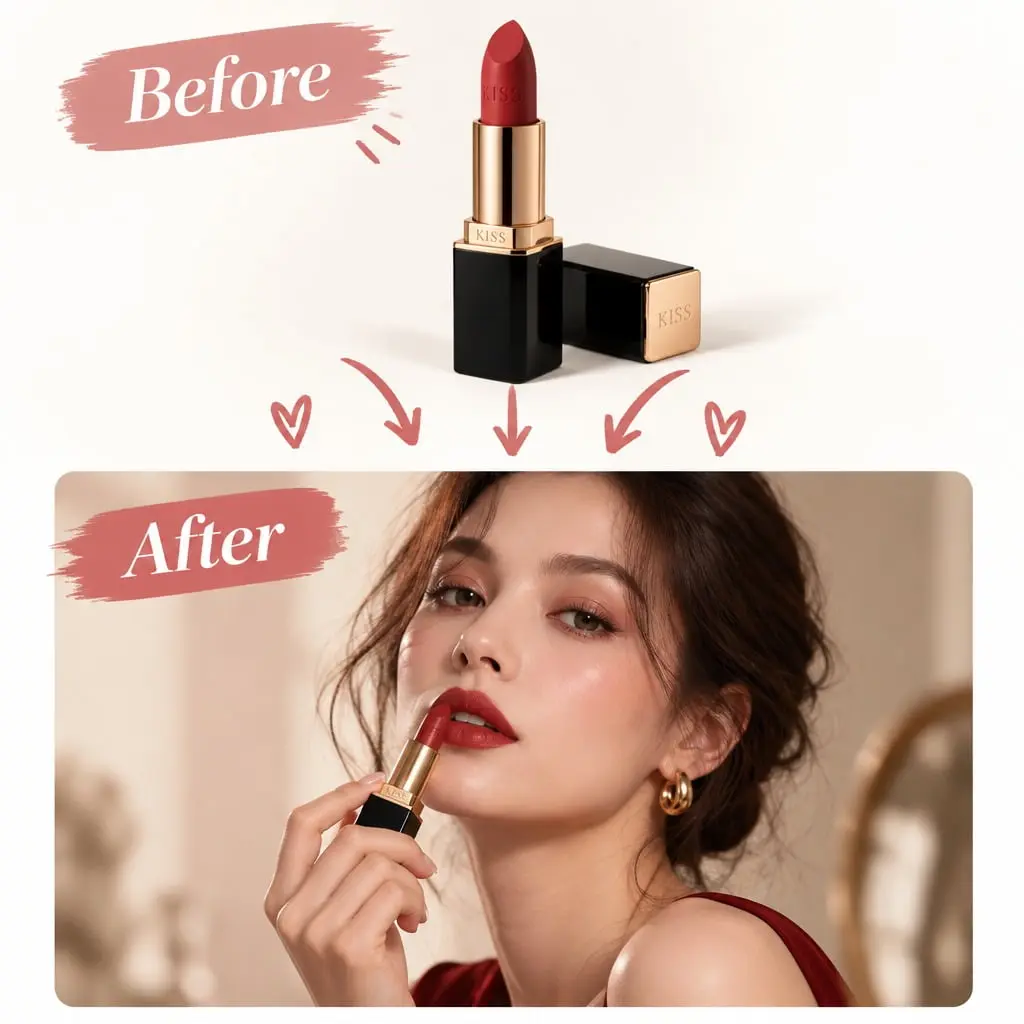
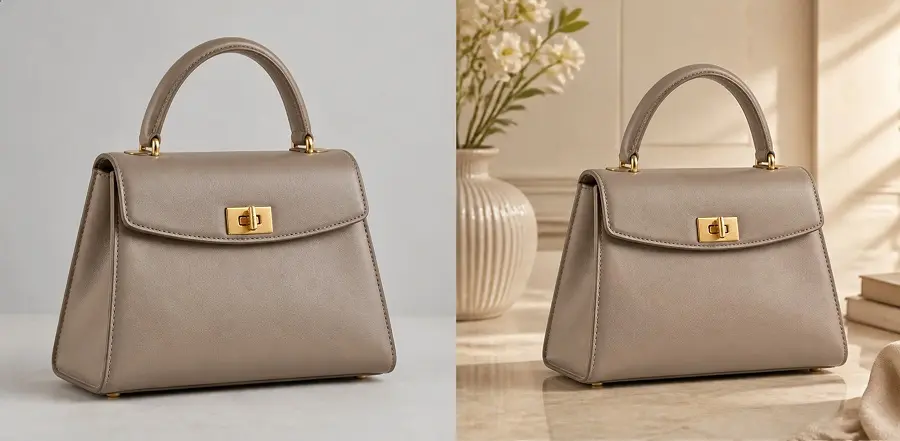
Lifestyle product photo generated from a white-background catalog shot

Turn a white-background shot into a realistic product scene

A plain catalog photo is a starting point, not the whole story. Place beauty, fashion, home, food, or accessory products into scenes that feel closer to how people actually browse, compare, and buy.

Skip the isolated product-on-white look. Generate lifestyle product photos you can use in listings, ads, landing pages, and social posts.

Move a studio product shot into a lifestyle scene

A studio image keeps attention on the product. A lifestyle setting places the same item in an everyday context, closer to how people use it, browse it, and imagine it at home.

Use a lifestyle product photography preset to try new rooms, tables, and lighting from one existing product photo. Generate scene-based images for social posts, store banners, and campaign ideas without another photoshoot.

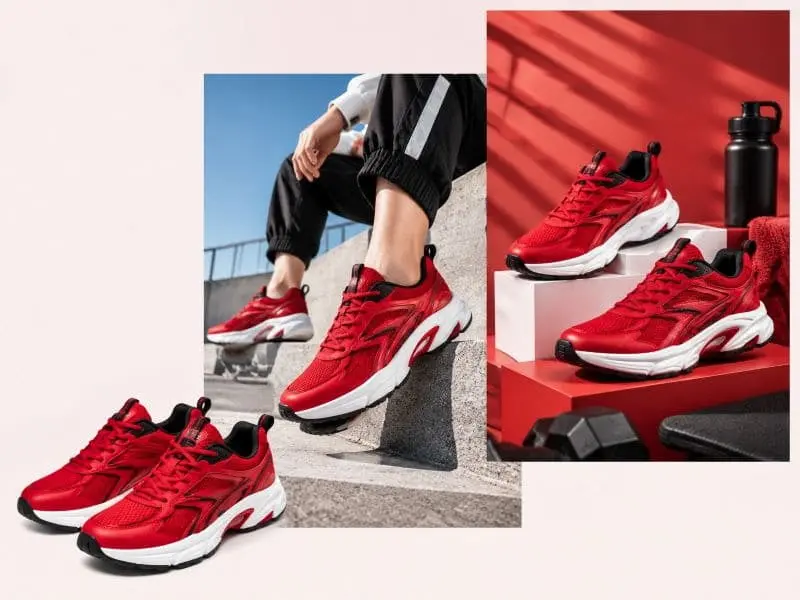
Lifestyle product photo generated from a studio product shot

How AI product photography works

1

Prepare a transparent product image

Start with a PNG that has no background. If your photo still has a backdrop, remove it first so only the product remains. A clean transparent product image helps the product keep its shape, color, and logo in the new scene.

2

Upload it and choose a scene

Upload that transparent image here. Pick a preset such as white, gray, marble, kitchen, or cafe, or choose Custom to describe your own scene. The product stays the same; only the scene around it changes.

3

Generate and download

Click Generate to place the product into the new scene. Download the result for product pages, ads, emails, or social posts, then try another scene from the same transparent product image if you need more looks.

Who this AI product photography tool is for

Use one transparent product image to create product scenes for stores, ads, and social posts. The product stays the same.

Ecommerce listings

Turn a catalog photo into clean product-page photos. Keep a simple studio look for Amazon, Shopify, and other marketplaces, or add a richer scene for the gallery.

Ads and landing pages

Build banner and campaign images without taking new photos. Place the same product into a kitchen, bathroom, tabletop, or branded set that matches the offer.

Beauty, home, food, and accessories

Place bottles, packaging, tableware, and small goods in scenes that feel closer to how shoppers compare products. The item stays clear; only the setting changes.

Social posts and email

Create lifestyle product photos for Instagram, ads, and newsletters from one source image. Download a new scene whenever you need a fresh look.

How to get better AI product photography results

Start with a transparent PNG

Remove the original backdrop first so only the product remains. A clean transparent product image is easier to place on marble, wood, kitchen, or studio scenes without leftover edges.

Keep the whole product in frame

Show the full item, including logos, labels, and packaging. Cropped or overlapping objects make it harder to keep the exact shape in the new scene.

Use even lighting

A sharp photo with even light gives a cleaner result. Harsh shadows, blur, or a dark source image can make the product look flat after the background changes.

Describe the scene in detail

Pick a preset, or choose Custom and describe the surface, lighting, and setting you want, such as white marble with soft window light. A specific scene usually looks more commercial than a short, vague scene description.

Frequently asked questions

Will the product change?

The AI keeps the exact product, including color, shape, logo, and packaging. Only the background, lighting, and surface change.

What kind of photo should I upload?

A transparent PNG works best. If the photo still has a background, remove it first so only the product remains. Keep the product fully visible, with a clear logo, label, and shape.

Do I need Photoshop?

No. This AI product photography tool runs in the browser. Upload a transparent product image, choose a scene, and generate a new product photo without desktop editing software.

Can I use it on my phone?

Yes. It works in the browser on iPhone, Android, and desktop. There is no app to install. Upload a product image, pick a scene, and download the result.

What products work best?

Beauty, home, food, fashion accessories, and packaged goods usually work well when the item is fully visible. Complex groups of objects or very small details are harder to keep exact.

Do I need an account?

You can try the Basic 0.5K and 1K options with the daily free quota. Higher quality, 2K, and 4K use credits. Sign in if you want to continue with credits after the quota is used.

Do credits work with other tools?

Yes. Credits and the daily free quota are shared across Background Remover, Image Upscaler, Image Eraser, AI Editor, AI Generator, AI Virtual Try-On, and AI Product Photography.

Where are my results saved?

Results stay in this browser for 15 days. We do not save your photos on our servers. Download a file if you want to keep it.