























AI Image to Video Generator
Turn a photo into a smooth video. Control the motion, camera, and length with a prompt.
My Creations 0
Generating video...
Generated results will appear here
Explore
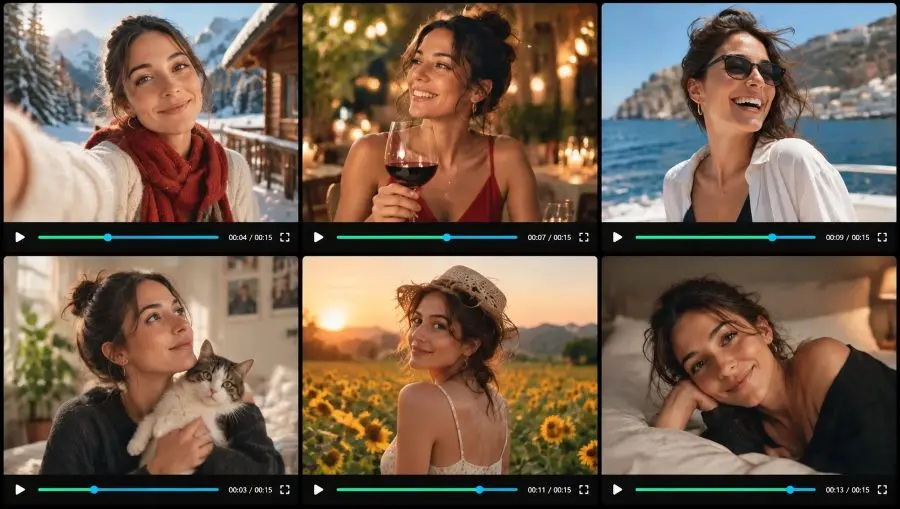
Generate a video from a prompt or a photo
Write the scene, motion, camera, and sound. Add a photo only when a product, face, or place should stay recognizable. Then choose the length, ratio, and video size. Supported models can include their own sound and go up to 4K.
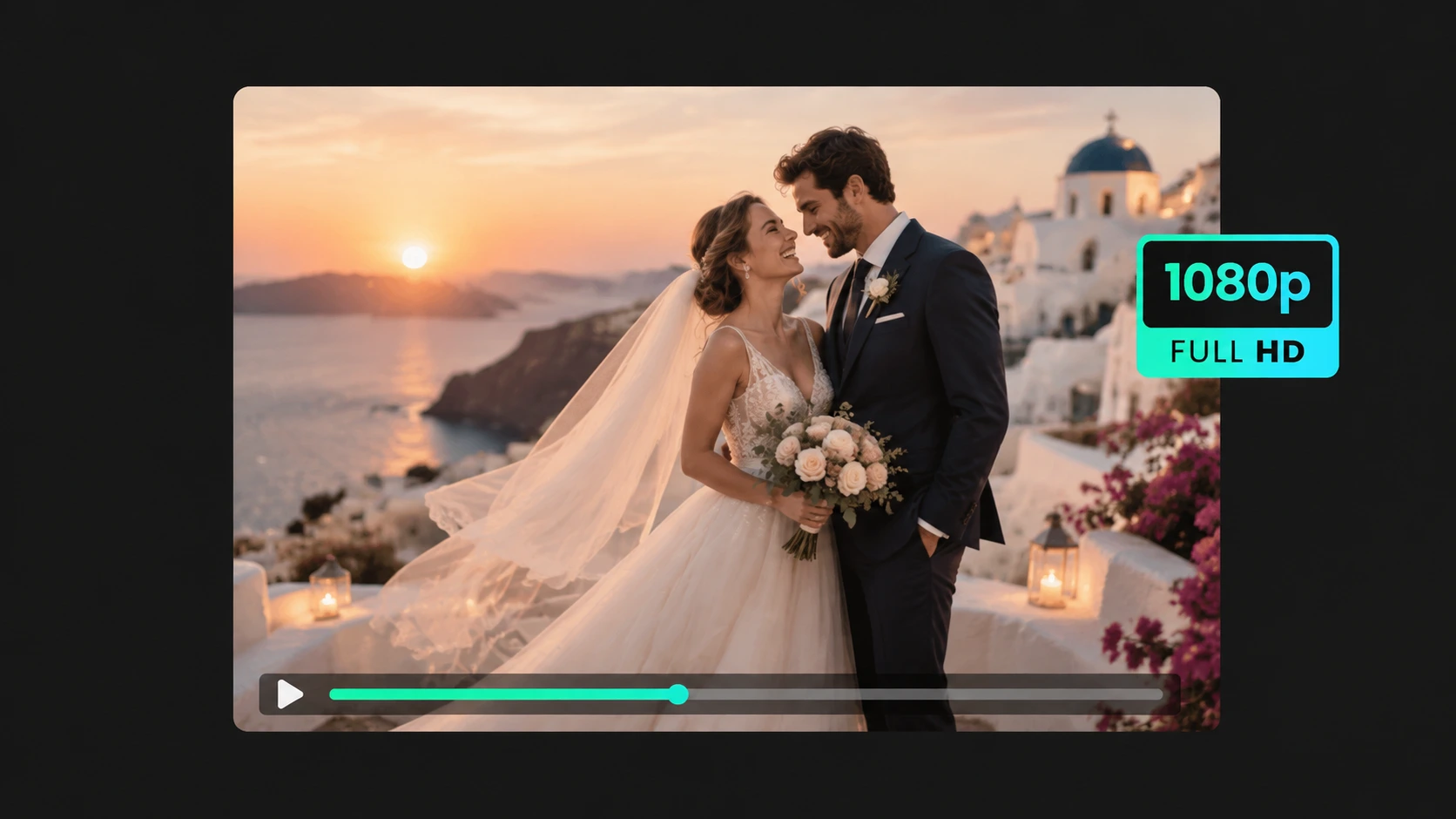
Professional 1080p video quality
Create cinematic clips with realistic motion, lighting, and smooth transitions. They are ready for social posts, ads, and other creative work. Choose 1080p for a sharp result, or go up to 4K on models that support it.
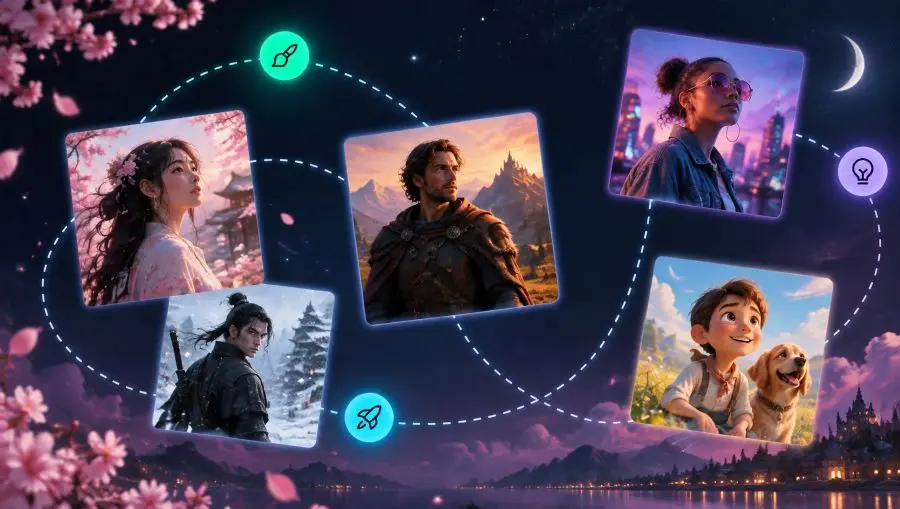
Start from an illustration, cartoon, pet, or product photo
Animate an illustration, a cartoon, a pet, or a product photo. Your image is a reference for the subject and details. The prompt adds the motion, and the video does not have to copy the original layout.
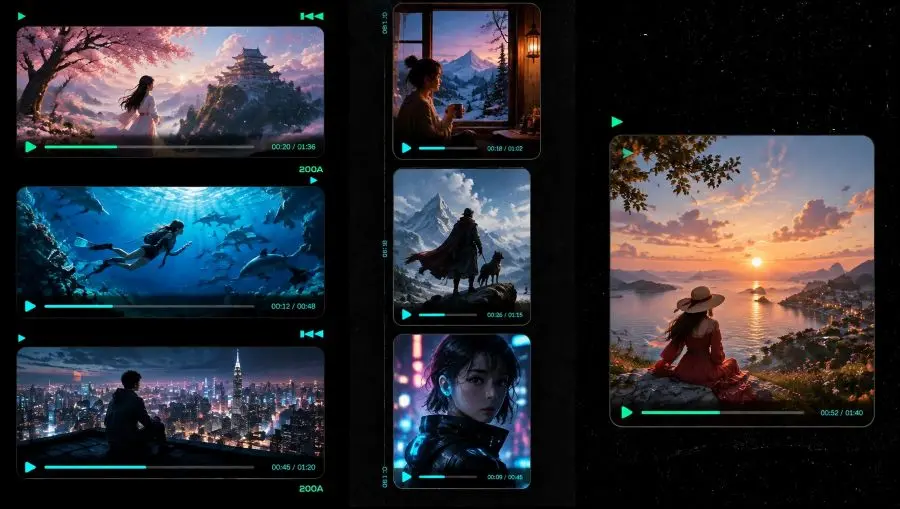
Flexible aspect ratios for any platform
Choose the aspect ratio when you generate: 16:9 for YouTube, 9:16 for TikTok and Reels, and 1:1 for a square social post. Supported models also include other ratios, so the clip can match the platform.
How to generate an AI video
-
Write the prompt
Describe the scene and motion in any language. Mention camera notes such as moving closer, moving sideways, or moving around the product. This step is required even if you skip the photo.
-
Add a photo only if you need it
Leave the upload empty for text-to-video. Add one or more photos when a model should keep that product, face, or place. Then pick ratio, video size, and duration.
-
Generate and download
Click Generate. Preview the MP4 in My Creations, then download it for ads, shop pages, or social posts.
How to write a video prompt
A prompt written for a photo editor is not enough here. Name the action, camera, clip length, and sound. Do not use photo-edit language such as change the clothes or remove the background.
Text only, no photo
Describe the whole scene: place, weather, who appears in the shot, and how the camera moves for the full duration. Example: rain on a night street, the camera follows the signs, wet asphalt, distant traffic, 8 seconds, 16:9.
One product photo as a reference
Keep the uploaded product photo, then name the camera and light. Example: use Image 1 as this bottle, the camera moves slowly around it, soft studio light, no new objects, 5 seconds, 9:16, a quiet spoken product line.
A face or pet that must stay the same
Ask for small motion, not a new outfit or a new room. Example: keep this face and hair, slight smile, hair in a light breeze, the camera moves slowly closer, natural window light, no new background.
What not to write
Do not ask this page for a single picture, a clothes swap, or a background removal. Write motion, camera, length, and optional sound. Leave photo edits to the image tools.
What this AI video generator is for
Use it when you need motion, camera, duration, and optional audio. It is not a photo editor and not a text-to-image tool.
Text-to-video scenes
No photo needed. Describe a new scene, weather, camera path, and sound, then generate a clip from the prompt alone.
Product ads from one photo
Upload a product photo, then ask for the camera to move slowly around it, with studio lighting and the product kept in focus. This works better for shop ads than a single JPEG.
Vertical social clips
Set 9:16 and a short duration for TikTok, Reels, or Shorts. Start from text, or from a selfie or product photo if identity matters.
Clips with their own sound
On models that support it, write the spoken line, background music, or background sound in the prompt so the video is not silent.
Multi-image story clips
Some models accept several photos. Use Image 1, Image 2, and so on in the prompt so each upload keeps its own role.
Portrait and pet motion
Keep the uploaded face or pet, then describe small natural motion: a smile, hair in wind, or a look toward camera.
AI image to video FAQ
Can I generate a video without uploading an image?
Yes. The prompt is required; the photo is optional. Write the scene, motion, camera, and sound, then click Generate. Add a photo only when you want a real product, person, or place to stay recognizable.
When should I upload an image?
Upload when the person or product must match a real photo. Skip the upload when you want a new scene created from the prompt. Clear, well-lit photos with space for camera motion work better than tiny or blurry files.
How do I control camera and motion?
Put the camera move and the action in the prompt: the camera moves closer, moves left, follows the subject, circles the product, or a person turns toward the camera. Also set the video length so the move has time to finish.
Does the video keep the uploaded photo?
An uploaded photo is a reference for the product, person, or place. The prompt sets the motion and camera, and the aspect ratio you select continues to apply. With no upload, the whole clip is generated from the prompt.
Can the generated video include audio?
Yes, on models that can add their own sound. Write the spoken words, background music, or background sound in the prompt. A silent video usually means the prompt never asked for sound.
What aspect ratio should I use?
Use 9:16 for vertical shorts, 16:9 for YouTube and display ads, and 1:1 when the clip must sit in a square feed. The video size depends on the selected model; some go up to 4K.
How long should the generated video be?
Match the video length to the move in the prompt. A smile or hair moving in the wind needs a few seconds. A camera move around a product, or a camera that follows the subject, needs more. If the video is shorter than the action, the move will be cut off.
Can I use more than one image?
Some models accept multiple photos. In the prompt, refer to them as Image 1, Image 2, or Photo 1 so the model knows which upload is which.
 Images to Text
 Image to Doc
 Image to Excel
 Compress Image
 Image Converter
 Crop Image
 Resize image
 Rotate image
 Background Remover